Conference Badge Printing: The Complete Guide to On-Site Name Badges (2026)
Every conference organiser knows the scene: a table covered in hundreds of pre-printed name badges, sorted alphabetically, with volunteers flipping through stacks while a queue of attendees grows longer by the minute. Then, at the end of the event, 30% of those badges go straight into the bin because those attendees never showed up.
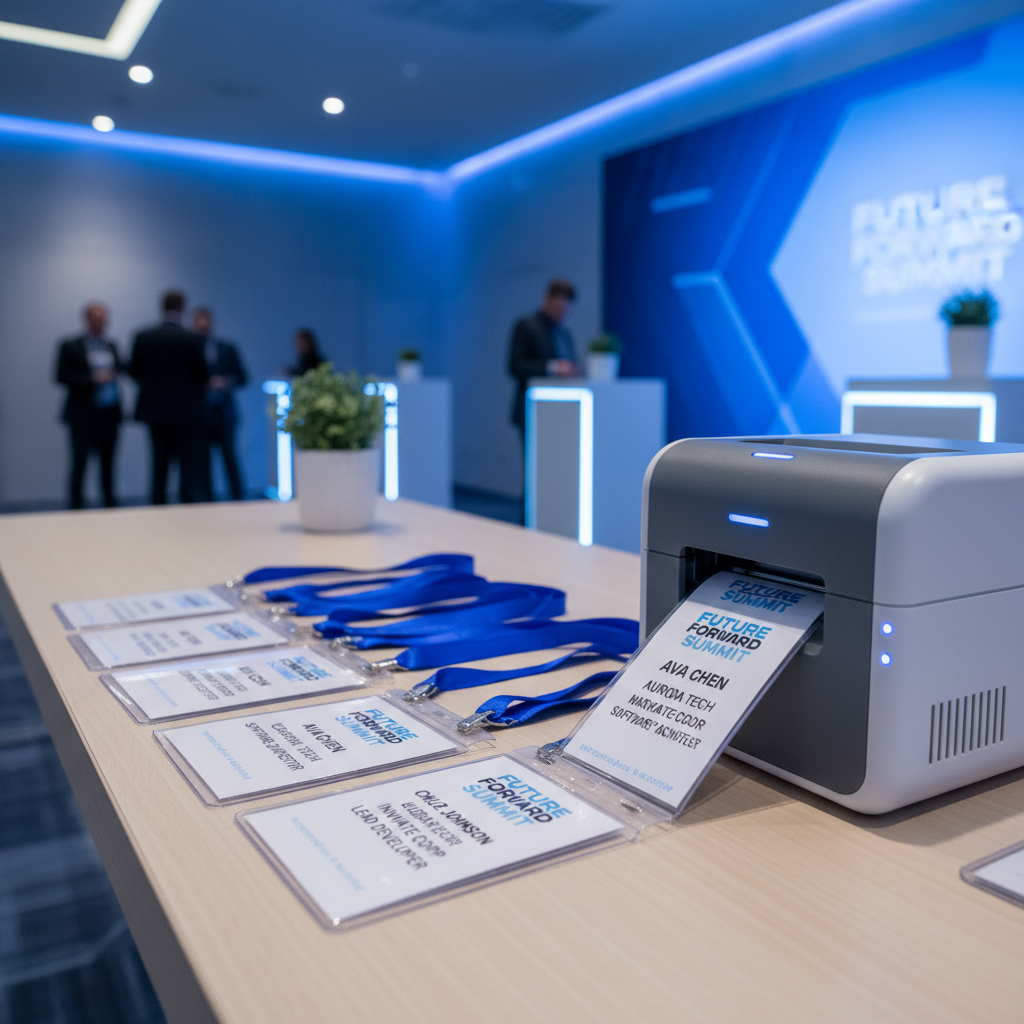
Conference badge printing has changed. On-demand printing at check-in eliminates waste, removes queues, and handles last-minute registrations without breaking a sweat. Whether you are running a 50-person workshop or a 5,000-person industry conference, the right badge printing setup makes your registration desk look professional and run smoothly.
This guide walks you through everything: pre-printed vs on-demand approaches, the best conference badge printing software, which printers to buy, badge design best practices, and a ready-to-use setup checklist.
Pre-Printed vs On-Demand Badge Printing
The traditional approach to conference name badge printing is straightforward. Export your attendee list a few days before the event, send it to a print shop or run it through your office printer, sort the badges alphabetically, and lay them out on tables for attendees to find themselves.
This method works, but it comes with real problems.
The pre-printed approach:
- Badges must be printed days in advance, locking in your attendee list early
- No-shows (typically 20-30% of registrations) mean wasted materials and money
- Walk-in registrations require handwritten badges that look unprofessional
- Name typos or title changes discovered after printing require reprints or awkward corrections
- Sorting and distributing hundreds of badges takes staff time and table space
The on-demand approach:
- Badges print only when an attendee checks in, so you never print a badge that goes unused
- Walk-ins register on the spot and receive the same professional badge as everyone else
- Attendees can update their details right up to the moment they arrive
- Check-in and badge printing happen in a single step, typically under 10 seconds
- No pre-sorting, no alphabetical tables, no volunteers flipping through stacks
The cost difference is significant. On-demand conference badge printing saves 20-30% on badge stock and consumables because you only print what you need. For a 1,000-person event with a 25% no-show rate, that is 250 badges you never have to pay for or throw away.
The trade-off is that on-demand requires badge printers on-site and software to drive them. But as you will see, the hardware and software costs pay for themselves quickly.
How Conference Badge Printing Software Works
Conference badge printing software connects your attendee data to your printers, so badges print automatically when someone checks in. Here is how a typical workflow looks, using Micepad's badge printing system as an example.
Step 1: Design your badge template. Use a drag-and-drop editor to lay out your badge. Place the attendee's first name, last name, company, job title, and any other fields where you want them. Add your event logo, sponsor logos, and colour-coded elements for different attendee types.
Step 2: Import attendee data. Upload your registration list from a CSV, or connect directly to your registration platform. Fields like name, company, title, dietary preferences, and session selections all come through.
Step 3: Map data fields to badge layout. Tell the software which data fields go into which spots on your badge template. First name in the large text area, company below it, QR code in the corner, and so on.
Step 4: Connect your printers. Pair your badge printers with the software over WiFi, USB, or Bluetooth. Most conference badge printing software supports multiple printers running simultaneously.
Step 5: Print at check-in. When an attendee arrives, they scan their QR code (from their confirmation email) at a check-in station. The software instantly sends their personalised badge to the connected printer. The badge is ready in seconds.
This is the core advantage of event badge printing software over manual processes. The entire flow from arrival to badge-in-hand takes under 10 seconds, with no staff needing to look up names or sort through piles.
Choosing a Conference Badge Printing Machine
The right conference badge printing machine depends on your event size, budget, and badge format. Here are the main options.
Brother QL-820NWB
This is the go-to printer for small to mid-sized events. It connects via WiFi, USB, and Bluetooth, prints at roughly 110 labels per minute, and supports badge widths up to 62mm. It is affordable (around $200-250 USD), compact enough to fit on a registration desk, and reliable. For events under 1,000 attendees, this is often all you need.
Zebra ZD421
For high-volume events, the Zebra ZD421 is an industrial-grade thermal printer built for speed and durability. It handles continuous printing without overheating, supports wider badge formats, and is the standard choice for conferences with 1,000+ attendees. Expect to pay $400-600 USD, but the speed and reliability are worth it for large events.
Standard inkjet or laser printers
If you need full-colour badges with photos, logos, or complex graphics, a standard office printer can work. The downside is speed: you are looking at 10-20 seconds per badge versus 2-3 seconds on a thermal printer. For events under 200 attendees where badge design matters more than throughput, this is a viable option.
Thermal printers (general)
Thermal printers are the preferred choice for on-site badge printing because they are fast, require no ink cartridges (they use heat-sensitive paper or thermal transfer ribbons), and produce clean, professional text. The cost per badge is low, and you avoid the risk of running out of ink mid-event.
What to look for when choosing a printer:
- Speed: How many badges per minute? For events over 500 attendees, you want at least 50 badges per minute per printer.
- Connectivity: WiFi and Bluetooth let you place printers anywhere without cable runs. USB is more reliable but limits placement.
- Badge size support: Make sure the printer handles your chosen badge dimensions. Standard sizes are 4" x 3" (landscape) or 4" x 6" (portrait/lanyard).
- Cost per badge: Thermal labels cost $0.03-0.10 each. Inkjet badge stock runs $0.20-0.50 per badge.
Badge Design Best Practices
A well-designed conference badge serves two purposes: it identifies the attendee and it facilitates networking. Here is how to get both right.
Make the name readable from 3 metres. The attendee's first name should be in 48-point font or larger. This is the single most important design decision. If people cannot read names from across a table, the badge is not doing its job.
Prioritise information hierarchy. The layout should follow this order of visual prominence:
- First name (largest text)
- Last name (slightly smaller)
- Company or organisation
- Job title or role
- Event branding (logo, event name)
Use colour coding for attendee types. Assign different background colours or accent strips for speakers, VIPs, sponsors, exhibitors, staff, and general attendees. This makes it easy for everyone to identify who is who at a glance.
Add a QR code for lead scanning. A QR code on the badge lets exhibitors and sponsors scan attendees for lead capture. It can encode the attendee's name, email, company, and any custom fields. This alone makes your event more valuable to sponsors.
Stick to standard lanyard dimensions. The most common badge sizes are 4" x 3" (landscape, fits standard badge holders) and 4" x 6" (portrait, often used with lanyards for larger events). Pick one size and make sure your printer, badge stock, and holders all match.
Keep branding subtle. Your event logo belongs on the badge, but it should not compete with the attendee's name. Place it at the top or bottom, and keep it small.
Top Conference Badge Printing Software
Here is a comparison of the leading conference badge printing software options available today.
1. Micepad
Micepad integrates check-in and badge printing into a single workflow. Attendees scan a QR code, and their badge prints automatically. The drag-and-drop badge designer supports custom layouts, colour coding by attendee type, QR codes for lead scanning, and multi-language text. It works with Brother, Zebra, and most thermal printers. Micepad is free for small events and scales to enterprise pricing for large conferences. Learn more about Micepad's badge printing.
2. Cvent
Cvent is an enterprise event management platform with badge printing as part of its broader suite. It offers strong customisation and integrates with Cvent's registration, attendee management, and analytics tools. The downside is cost: Cvent pricing typically starts in the thousands per event, making it best suited for organisations already using the Cvent ecosystem.
3. Boomset
Boomset is a dedicated check-in and badge printing platform. It supports on-site printing, facial recognition check-in, and lead retrieval. It sits in the mid-range on pricing and is a solid choice for event organisers who want a focused tool rather than a full event platform.
4. Whova
Whova is primarily an event app platform that includes basic badge printing features. It is a good fit if you are already using Whova for your event app and want to add simple badge printing without bringing in another vendor. Badge customisation is more limited compared to dedicated solutions.
5. Eventbrite
Eventbrite offers basic badge printing for events managed on its platform. Customisation options are limited, and it works best for simpler badge formats. If you are already selling tickets through Eventbrite and need straightforward name badges, it can get the job done without additional software.
On-Site Badge Printing Setup Checklist
Use this checklist to make sure your on-site badge printing runs without problems on event day.
24 hours before the event:
- Test every printer with your badge software and actual badge stock
- Print 10 sample badges to verify layout, font sizes, and alignment
- Confirm WiFi connectivity at the venue (or set up a dedicated hotspot)
- Test offline mode in case WiFi fails during the event
- Train at least 2 staff members on the full check-in and printing workflow
Day of the event:
- Arrive early to set up printing stations (allow 60-90 minutes)
- Bring at least one backup printer
- Stock 20% more badge labels and ribbons than your expected attendee count
- Set up 2 printing stations for every 500 expected attendees
- Keep a small supply of blank, handwritten badges as an emergency fallback
- Test the full flow one final time: scan QR code, print badge, hand to attendee
- Position a staff member at each station to hand badges to attendees and troubleshoot
During the event:
- Monitor badge stock levels and reload before running out
- Watch for printer jams or alignment drift and correct immediately
- Have your badge software open on a laptop to handle manual check-ins for attendees without QR codes
Frequently Asked Questions
How much does conference badge printing cost?
The total cost depends on three factors: software, hardware, and consumables. Software ranges from free (Micepad offers a free tier for small events) to several thousand dollars per event for enterprise platforms like Cvent. Hardware costs $200-600 per printer, and most events need 1-3 printers. Consumables (thermal labels or badge stock) cost $0.03-0.50 per badge depending on the format. For a 500-person conference using thermal badges, expect to spend roughly $15-50 on badge stock alone.
What size are conference name badges?
The two most common sizes are 4" x 3" (landscape) and 4" x 6" (portrait). The 4" x 3" size fits standard clip-on badge holders and works well for events where attendees attach badges to clothing. The 4" x 6" size is popular for lanyard badges at larger conferences because the larger surface accommodates bigger text and more information. Some events use 3.5" x 2.25" (credit card size) for minimal badges at intimate gatherings.
Can I print badges on-demand at check-in?
Yes. On-demand badge printing is the standard for modern conference check-in. Attendees scan a QR code from their confirmation email, the software looks up their registration, and a personalised badge prints in 2-5 seconds. This eliminates pre-printed badge waste, handles walk-ins seamlessly, and ensures every badge has accurate, up-to-date information. Platforms like Micepad support this workflow out of the box.
What printer should I use for conference badges?
For events under 500 attendees, the Brother QL-820NWB is a reliable, affordable choice with WiFi and Bluetooth connectivity. For events over 500 attendees or multi-day conferences, upgrade to a Zebra ZD421 for faster speeds and industrial durability. If you need full-colour photo badges, a standard laser or inkjet printer works but prints more slowly. Most event organisers start with one or two Brother printers and add capacity as their events grow.
Ready to set up on-demand badge printing for your next conference? Get in touch with our team to find the right setup for your event size and budget.
Micepad Team
Micepad - Enterprise Event Management Software